
# Access Guide
# 1. Preparation
Before formal integration, some preparation is required: apply for a FinAuth console account (Chinese: https://yljz.com/faceopen/login, or English: http://global.yljz.com/console/login), apply for the api_key and api_secret, and configure scenes. Details are as follows:
# Step 1: Obtain a FinAuth console account
1.1 Contact your sales representative offline to activate a FinAuth console account.
# Step 2: Obtain the api_key and api_secret
2.1 Contact your sales representative offline to apply for the api_key and api_secret.
2.2 Log in to the FinAuth console and view them under Application Configuration - API Key Management.
# Step 3: Create a scene configuration (optional)
The scene ID (scene_id) in the request parameters is optional; the client may omit it (when omitted, the default blue theme color configuration is used).
3.1 Log in to the FinAuth console and go to Application Configuration - Scene Configuration - Mobile H5 (lite) - Create Mobile H5 Scene.
3.2 Description of scene configuration items:
| Configuration item | Configurable content | Description | Default |
|---|---|---|---|
| Scene ID | Manual input (English letters or digits only) | The scene ID used as an input parameter of the get_token API | None |
| Scene name | Manual input (Chinese, English, or digits) | Records the business scenario in which the configuration is used | None |
| Scene description | Manual input (Chinese, English, or digits) | Records the business scenario in which the configuration is used | None (optional) |
| Maximum video upload count | 1-5 times | The maximum number of times a user can upload a selfie video in a single verification flow | 5 times |
| Flow timeout duration | 1. 5 minutes2. 10 minutes3. 15 minutes4. 30 minutes5. 60 minutes | The timeout of a single verification flow, counted from the moment get_token is called | 60 minutes |
| Whether to show the verification flow home page | 1. Show2. Hide | - | Show |
| Theme color of the second and subsequent pages of the verification flow | Manual RGB input | - | 83,122,229 |
| Whether to show the exit button | 1. Yes2. No | - | Yes |
| Whether to show page notice text | 1. Show2. Hide | A prompt reminding the user to confirm their own intent. If set to show, it is displayed on each page of the verification flow. | Hide |
# 2. Integration
# Step 1: Get the token
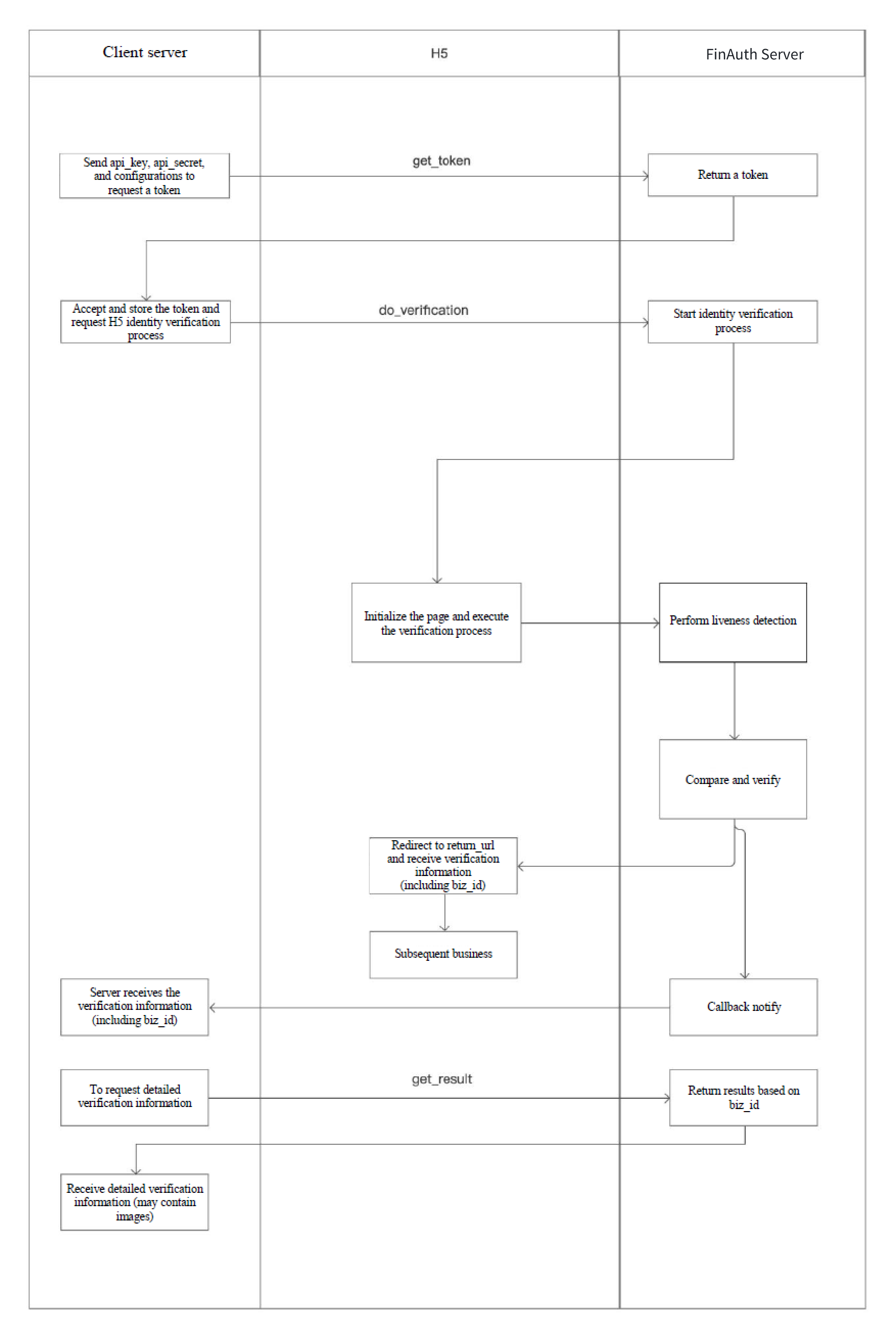
Obtain the api_key and api_secret from the FinAuth console, then call the get_token API with the parameters required by your business to obtain a token.
# Step 2: Redirect to the H5 verification page for the user to perform the operation
Use the token parameter to visit the DoVerification address in a browser (https://api-idn.yljz.com/finauth/lite/do?token=xxx) to redirect to the verification page provided by FinAuth. After verification is complete, the page redirects to your configured return_url page.
# Step 3: Get the verification result
Call the get_result API to look up the verification result.
How to interpret the verification result:
3.1 First check whether status is OK. A status of OK indicates that the FinAuth H5 Lite verification flow was completed.
3.2 Then check whether liveness_result is PASS. liveness_result is the liveness detection result, which detects whether an attack occurred (this field is valid when fmp_mode is 0 in get_token).
3.3 Finally, check whether the confidence in the verify_result is greater than the confidence threshold thresholds. verify_result is the face comparison result; if it is greater than the confidence threshold, we consider the faces to belong to the same person.
# 3. Flow Chart